Showing posts with label date calculations. Show all posts

Sunday, 12 November 2017

Working with Eurostat unemployment data in Tableau

Eurostat publishes among other things, unemployment data for the EU. The data is in a weird format, a hybrid between tab and comma separated values.
Having turned it into proper comma separated format, we remove the colons and pivot the years to get a more tableau friendly format:
While the year and quarter can be split, a dateparse calculation is more helpful:
dateparse("yyyy'Q'q",[Pivot Field Names])
 This finally allows us to do some analysis, looking at the unemployment trend for the ten countries of the 2004 accession. Cyprus which I've chosen to highlight is a definite outlier.
It had relatively low unemployment before entering the EU, has a fairly mild recession until the greek PSI when unemployment rises and rises, until the final bail in and associated bank collapse in 2013. This was a double dip, or in the case of unemployment, double peak situation, with the situation improving only to become worse again around the end of 2014 and beginning of 2015. Croatia was the only country of the group in a worse situation until Q3 2016 when the two cross over.  

Thursday, 23 February 2017

Re-Make Thursday

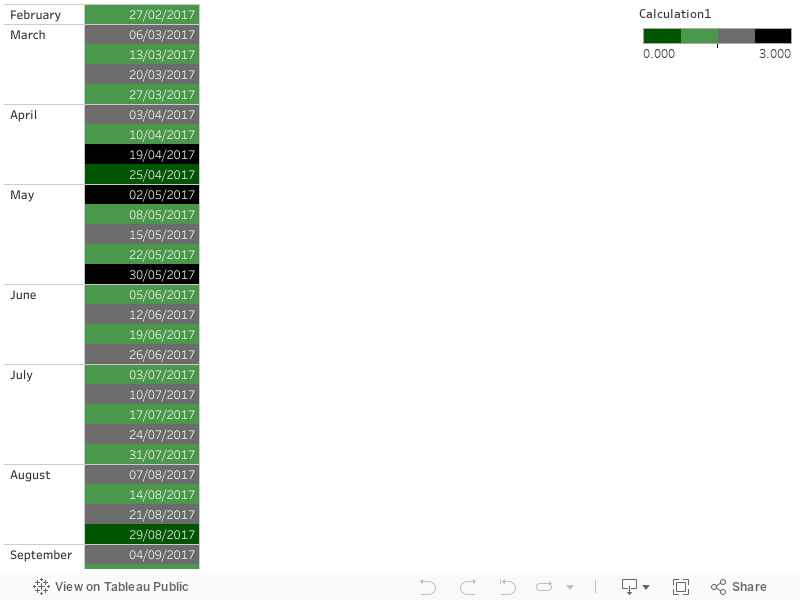
Not a makeover this time but a re-make. The data comes from my local council: They collect the recycling and the rubbish on alternate weeks, and because the collection day is a Monday, it gets collected later in the week when there are bank holidays. The colour scheme they selected is very sensible: colour by bin colour, stronger colours for the weeks when the collection happens later because of bank holidays.

I thought I could do it with a calculated field that calculates odd and even weeks
float(DATEPART( 'week', [Collection Days])/2 - int(DATEPART( 'week', [Collection Days])/2))
and colour by that and by whether it's Monday or not
DATEPART('weekday', [Collection Days])=2
However, the coloured box with text in it only works if the colour is driven by a continuous variable, rather than by a discrete one (or a discrete and a boolean, as in my original plan).

So we have to colour by a continuous variable, and counter-intuitively, the dark colours are at the two ends and the light colours in the middle. The mark is square and the label is the date.
if [odd even week]=0 and not [Monday?] then 0.0 elseif [odd even week]=0 and [Monday?] then 1.0 elseif [odd even week]=0.5 and [Monday?] then 2.0 elseif [odd even week]=0.5 and not [Monday?] then 3.0 end 


Saturday, 21 January 2017

Aggregating and propagating field values across asynchronous sources

That was a title full of made up jargon, not even standard database/tableau jargon! Hopefully an example will make it clear.

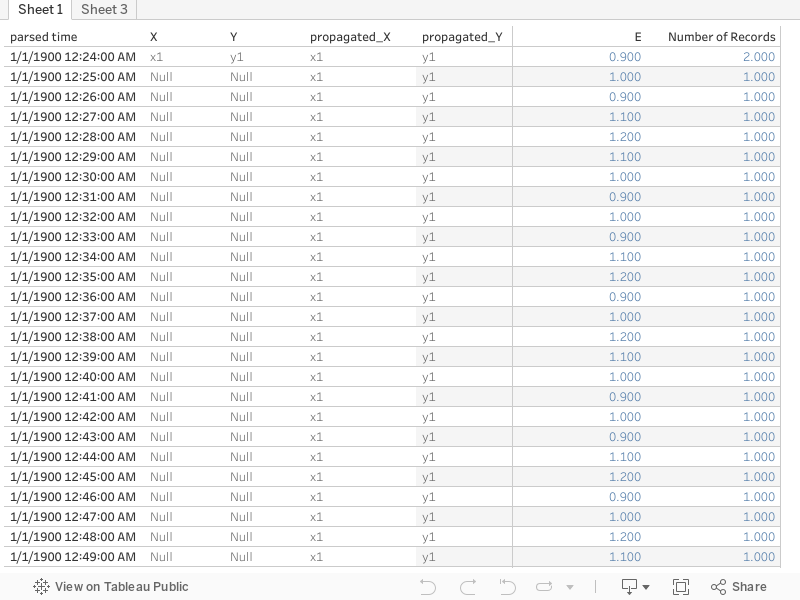
First of all, what do I mean by asynchronous sources data? It is the sort of data that comes from multiple sources, not at the same times (often from separate files/tables, after a union). A screenshot as usual is worth a thousand words.
 In this example let's assume we have a ship that reports its GPS coordinates every half hour, and the energy consumption on board every minute (it's fitted with a smart meter!). But what if we want to come up with energy usage for each position? The easy solution is to come up with a calculated 'half hour time' that truncates the original timestamps to half hour
left([Time],3)+if int(mid([Time],4,1))<3 then '00' else '30' end
 throw that on the level of detail, the x and y on rows and columns, and sum(E) will do the right thing. All well and good. There's the issue of truncating rather than rounding the time, and not interpolating intermediate positions but let's assume that level of accuracy is not important for this.


But what if the position is not consistently every half hour, what if it is less often when it moves slow, and more often when it moves fast? Then, assuming we still don't need to interpolate intermediate positions, we can avoid aggregation and instead try and fill in the null Xs and Ys using table calculations:
ifnull(attr([X]),previous_value(attr([X])))


This is a more robust method for non-regular interval reports, we can even copy paste it into a new sheet as a clipboard source if the table calculations are an issue.

Today's quick fix

Faced with data looking like in the table below, a bit of calculated field magic does the trick as there is an implied stop date that is not always the same as the start date.

Date
Start
Stop
01/12/2016
01:30
03:00
15/12/2016
05:30
07:00
16/12/2016
12:00
15:30
28/12/2016
21:00
02:30
Start timestamp
 dateparse('dd/MM/yyyy HH:mm',[Date]+' '+[Start])
Stop timestamp
dateparse('dd/MM/yyyy HH:mm',[Date]+' '+[Stop])+(if [Stop]<[Start] then 1 else 0 end)


Thursday, 12 January 2017

Pivoting measure names and measure values (caution, doesn't work in Tableau Public)

Let's now consider a data source similar to the contracts, where there is a duration instead of an end date. Easy: we can get the end date with a calculated field. The problem then is we are not given the option to use calculated fields in pivots.
This was a big disappointment for me back when pivots appeared in version 9. I had data in the format above, a python script to do the end date calculation and the pivoting and I was hoping to retire the script. 

I then went to one of the tableau conferences on tour in London. There I learned that you could copy some data in a visualisation, and paste it in a new worksheet, creating a new source from the clipboard. This was useful, and by using this I found a way to do pivots with most fields, as long as they could be expressed as measures. This is very dodgy and I don't recommend it, I should really stick to the Python script. But here is how to do it: 

First of all convert your dates into numbers, as dates can only be dimensions, not measures. Use something like: 
datepart('day',[Start Date])*1000000+datepart('month',[Start Date])*10000+datepart('year',[Start Date])
Then create a view with measure names and measure values showing these 'measure' dates with all other info as a dimension.
 Finally select all the rows, copy and paste into a new worksheet.  Caution: This doesn't work in Tableau Public! If done in Tableau Desktop you get this:

Note how there are two Measure Names and two Measure values, the italics ones are automatically generated, the non italic are fields in the clipboard source, string for the names and number for the measures. So now we have our pivoted field name and field value, and can use calculated fields to restore the dates to a date format as well as recreate our increment calculation
DATE(dateparse('ddMMyyyy',str([Measure Values])))

if [Measure Names]='start' then 1 elseif [Measure Names]='end' then -1 end

Finally here's the workbook:

Monday, 9 January 2017

Using the pivot with contracts

2018.1 Update

The contracts dummy data is quite typical of certain troublesome datasets, so I will demonstrate some less boring uses for it.

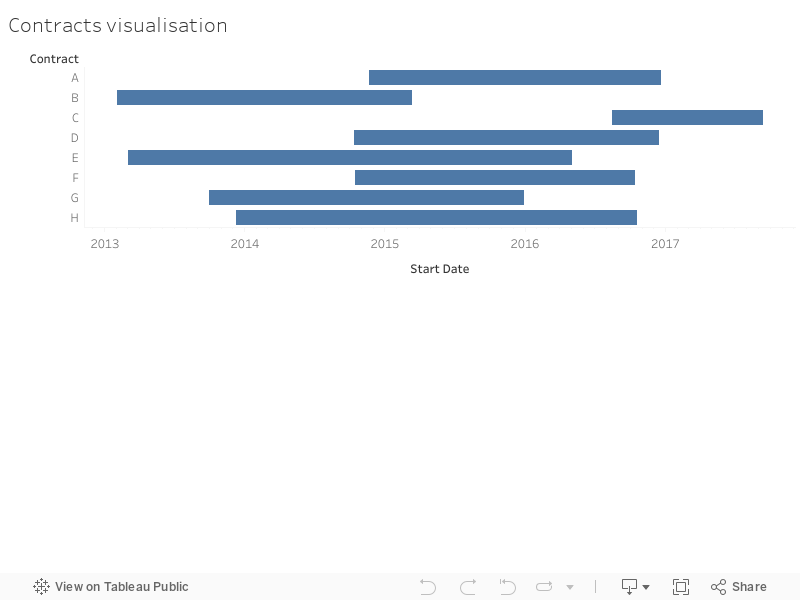
The Gantt chart is great for visualising but not very useful for doing any further calculations. With this sort of dataset to go any further you need to select the start and end dates and pivot.
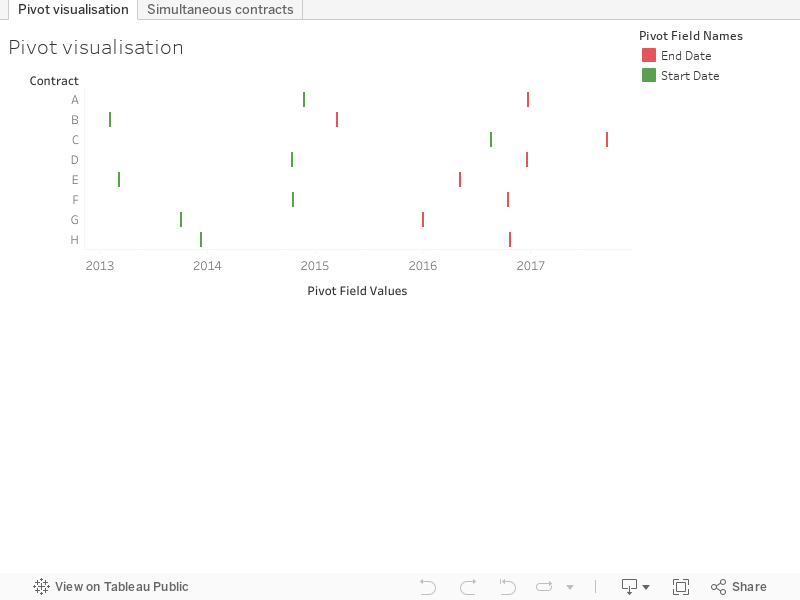
The result of the pivot is to put all the dates in the same column, and add a second column telling you whether they are a start or an end date.
So now we can visualise both start and end without a calculated field as they are both on the same date axis. Much more useful though is the following calculated field which I'll call 'increment':
if [Pivot Field Names]='Start Date' then 1 elseif [Pivot Field Names]='End Date' then -1 end
A running sum of increment tells us at any given point the number of 'live' simultaneous contracts.

So finally, here's the visualisation:

Sunday, 8 January 2017

Makeover Sunday

This is the first of a series of three posts on the same data source, part II and part III

Hello world,

I've been a tableau user for a while now and finally decided to engage publicly and contribute back to the community.

Makeovers are a tradition in tableau blogging. I'm going to give them a slight twist: I'm not focusing on the look of the visualisation but more on what goes on under the hood. For the first makeover I'm taking inspiration from a recent post by Andre de Vries  . Andre is showcasing an interesting new feature in tableau 10.2 , but he is using a join where not absolutely necessary. As is the case with joins, the resulting dataset has dimensions MxN where M and N the dimensions of the joined datasets.

I recreated Andre's dummy contract data, and used a single calculated field:
Duration=End Date - Start Date
Thus after putting Contracts on Rows and Start Date on Columns (Detail: Exact Date), which Andre does 1:40 min into his video, I also put Duration on the size, which turns the whole thing into the intended Gantt chart.